Facebook comments

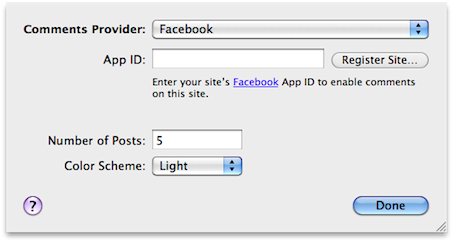
Choose Facebook from the comments provider popup. If you do not have an App ID, click the 'Register Site…' button.
Fill in the required fields, you will then be given your App ID.


There also also options to choose the 'Number of Posts' you want to show on your page at one time.
As well as the 'Color Scheme' that you want. Dark is better for dark designs, and light for light designs.

Facebook_options

Troubleshooting

After setting up Facebook Comments and publishing your site, you might see a warning after the comments area that says that Facebook cannot contact your site.


Usually, the warning message appears because the site URL and app domain in the app page were left blank.

To fix the issue, do the following:

  1. Log into Facebook and go to http://www.facebook.com/developers/apps.php.
  2. Select Apps from the navigation bar at the top of the page.
  3. On the left side of the page, select the App (or Site) that you need to update.
  4. On the right side of the page, pick Edit Settings.
  5. Under the Basic Info section, locate App Domain and enter just the domain of your site, without www. or anything else. So example.com rather than www.example.com.
  6. Under the Website section, locate Site URL and enter the full URL for your site. This should match URL Format in Host Setup. E.g., http://www.example.com/.
  7. Click Save Changes.


Keywords: facebook, comment, comments, trackback, trackbacks, reader, readers, reader's, readers', post, visitor, visitors, track-back, track-backs, track, back, display, displaying, show, showing, js-kit, jskit, haloscan

How can we improve this page? Let us know.