Web View
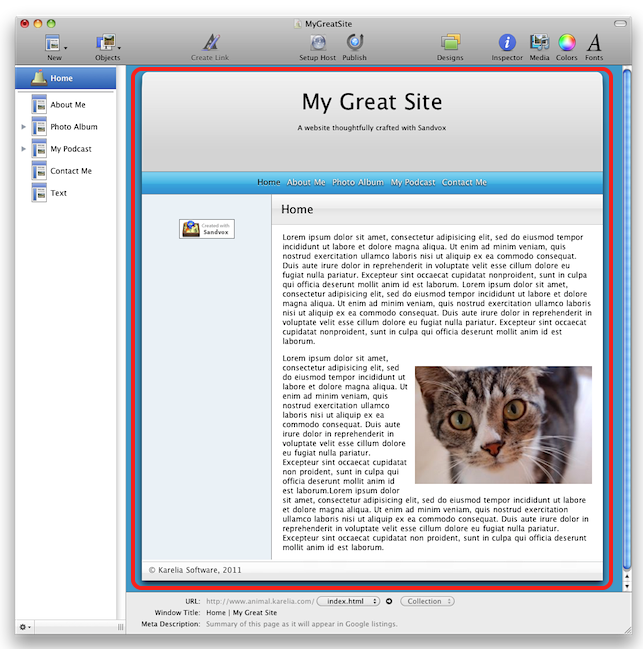
The Web View is possibly the most important part of the Sandvox interface. It provides a "live preview" of what a page will look like once it's published. This is just as if the page were being displayed in a web browser, so there is generally no need to "test" your site using one.
You can simply click on items within the Web View to manipulate them, such as text, and objects. Often you can also control-click an item to bring up a contextual menu that provides shortcuts to common operations.
Just like a web browser, the Web View can be manually refreshed. This can be useful if you are working on a Raw HTML page or a page that contains "live" objects.
Ways to reload the Web View:
- Choose "Reload Web View" from the View menu.
- Press Command-R.
Text Size
As in a normal web browser, you can set the size at which the Web View will display text. This setting only affects how the text is displayed on your monitor. It does not affect the size of the published text. You generally use it to see how some visitors might view your site.
To set the Web View text size:
- Open the View menu.
- Choose "Make Text Bigger," "Make Text Smaller" or "Normal Text Size."
Keywords: web, view, webview, browser, live, preview, page, wysiwyg, text, size, sizing, sizes, viewing, accessibility, control, click, right, control-click, right-click, standard, without, style, styles, CSS, HTML, source, valid, validate, validated, validating, validates, validation, reload, reloading, refresh, refreshing
