Object
If you have been using earlier versions of Sandvox, we had used the term "Pagelet" but now we have unified architecture, and pagelets are now called Objects.
An object is something that is put onto a page. It can go in three positions - in the main content area, mixed in with the text; as a callout, or in the sidebar. (As set in the Wrap Inspector).
Object Types
Sandvox 2 ships with the following object types:
- Text Box
- A simple section of text that you can format.
- Block Quote
- A Text Box pre-configured for containing a quote.
- Media Placeholder Object
- A placeholder for media, e.g. Image, Video, Audio, or Flash.
- Indexes
-
Collection Archive
- Generates archival pages for a collection each month to keep track of changes to the collection.
-
Photo Grid
- Page thumbnails and titles in a grid arrangement.
-
Site Map
- A Site Map lists all the pages of a site.
-
Slide Show
- Shows a collection of images in sequence.
-
Titles and Summaries
- Page Titles and/or summaries that can be customized with many different layouts.
- Sharing Buttons
-
Facebook
- Adds a Facebook button to your site.
-
Google+
- Adds a Google+ +1 Button to your site.
-
LinkedIn
- Adds a LinkedIn Share or Member Profile button to your site.
-
Pinterest
- Lets your visitors post your page to their Pinterest boards.
-
Tweet Button
- Help visitors tweet about your site.
- Raw HTML
- An object of your own custom HTML code.
- Amazon List
- A list of Amazon products
- Contact Form
- A form allowing site visitors to easily contact you while protecting your e-mail address.
- Delicious List
- Lists your delicious.com bookmarks.
- External Page
- An external webpage contained within an object. Sometimes known as an iFrame.
- External RSS Feed
- Displays the up-to-date headlines from an RSS or Atom feed.
- Flickr Thumbnails
- A small gallery of photos from Flickr.
- IM Status
- Displays whether your Messages (AOL/AIM), Skype, or Yahoo! Instant Messenger account is currently online or not.
- List of External Links
- A customizable list of links to external webpages.
- Map
- Includes a Google Map on your site.
- Page Counter
- Indicates how many times your site has been visited.
- RSS Badge
- Links to the RSS feed of a collection, allowing visitors to easily subscribe to it.
- Sandvox Badge
- A small image that shows you used Sandvox to build the site. Click on it to go to the Sandvox site
- Vimeo
- Displays a video from Vimeo
- YouTube
- Displays a video from YouTube
Custom Object Types
To expand on the basic page types, experienced Cocoa Developers can use the "Sandvox Developers Guide" to create custom object types.
For a guide on how to install such third party object types, please see "Installing Sandvox Plug-ins and Designs."
Working With Objects
Ways to add a new object to a page:
- Click the "Objects" item in the toolbar and choose an object from the list.
- Choose "More" from the Insert menu and pick an object.
For an Index Object choose from the Index option in the Insert menu.
- Drag a media file (from the Media Browser, Finder, or another application) into the Sidebar of a page.
If you want to quickly add an object to the sidebar, select an existing object in the sidebar, then add the new object. The new object will be added above the existing one.
Ways to move an object on a page:
- You can drag objects around (up and down within main body area, and left-center-right alignment within the main body area, or just up and down within the sidebar.
- You can also change their position from the Wrap inspector.
Ways to edit an object's settings:
- Click the object to select it and open the Object Inspector.
Ways to remove an object from a page:
- Click the object to select it, and choose "Delete" from the Edit menu.
- Select the object and press the delete key.
Object selecting and focusing
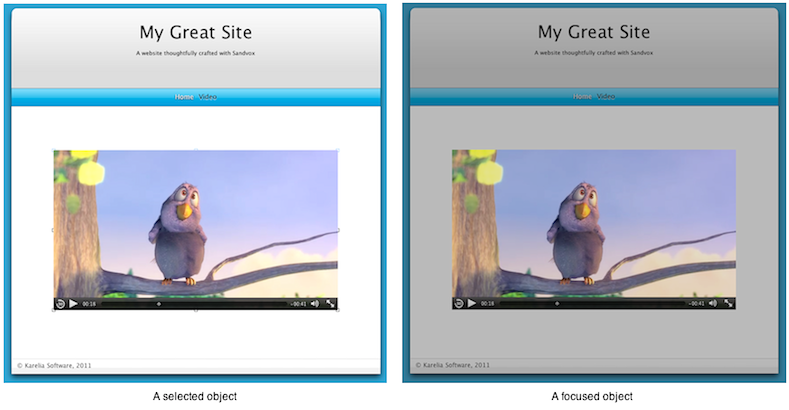
Selecting an object -- where you get resize handles -- and 'focusing' on an object, which is where you click on an object a second time.
When you focus on an object, the rest of the web view gets slightly darker. When you are focused on an object, you can interact with it; for instance on a video you can then click the controls to actually play a video.
The inspector works on the selected or focused object.
When an object is selected, you can drag it around on the page. When the object is focused, you cannnot, since clicks and drags are sent to the object for it to handle. For instance, you can skim through a video by dragging the slider left and right.
Click outside of a selected or focused object to de-select it.
Keywords: object, objects, callout, callouts, sidebar, page, mini, small, control, click, right, control-click, right-click
